AWS Secrets Manager Credentials
To further enhance credential management in Cloudhouse Guardian (Guardian), you can now integrate your Guardian instance with AWS Secrets Manager to securely retrieve secrets from your organization's existing AWS account and use them as the authentication method when adding a Windows Node, Linux Node or Network Device Node. This feature helps centralize credential storage, improve security, and reduce the need to manually manage credentials across multiple nodes. For more information on the new AWS Secrets Manager integration feature, see AWS Secrets Manager Integration.
Note: This feature was introduced in V3.64.0 of the Guardian Web application. This is an optional feature that must be enabled. For more information on how to enable it, contact your Cloudhouse Representative.
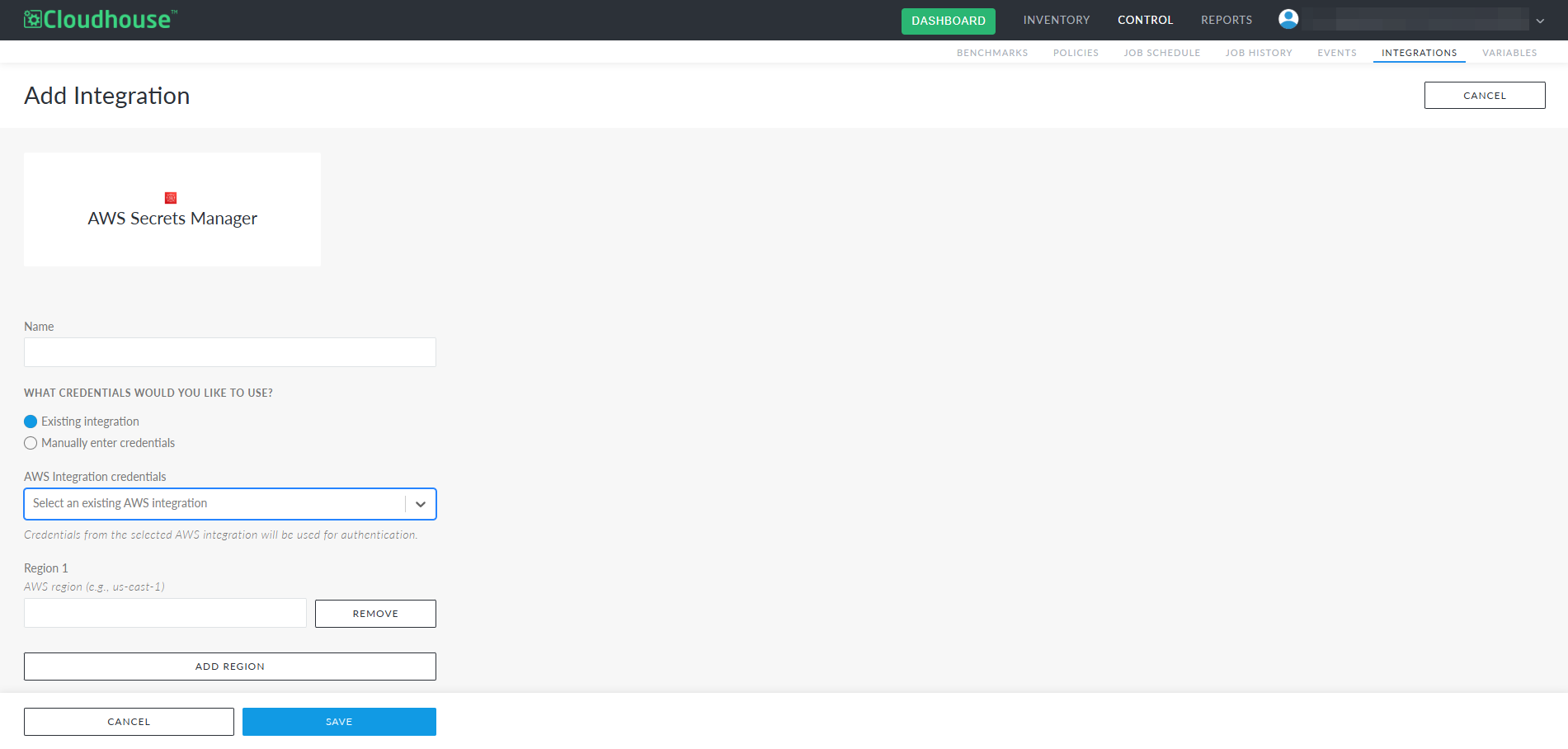
Use AWS Secrets Manager Credentials
To use AWS Secrets Manager credentials as the authentication method Guardian uses to access nodes, the following dependencies must be met:
-
AWS account – Configured with AWS credentials.
-
AWS Secrets Manager integration – Set up in Guardian, with the folder path(s) to your existing credentials defined.
Once you add an AWS Secrets Manager integration, you will see the new AWS Secrets Manager radio button under the Password credential type when adding a Windows, Linux or Network device node. For more information on how to use an AWS Secrets Manager credential when adding a node, see the sections below.
Note: The following image shows where the AWS Secrets Manager option appears when adding a Windows node.
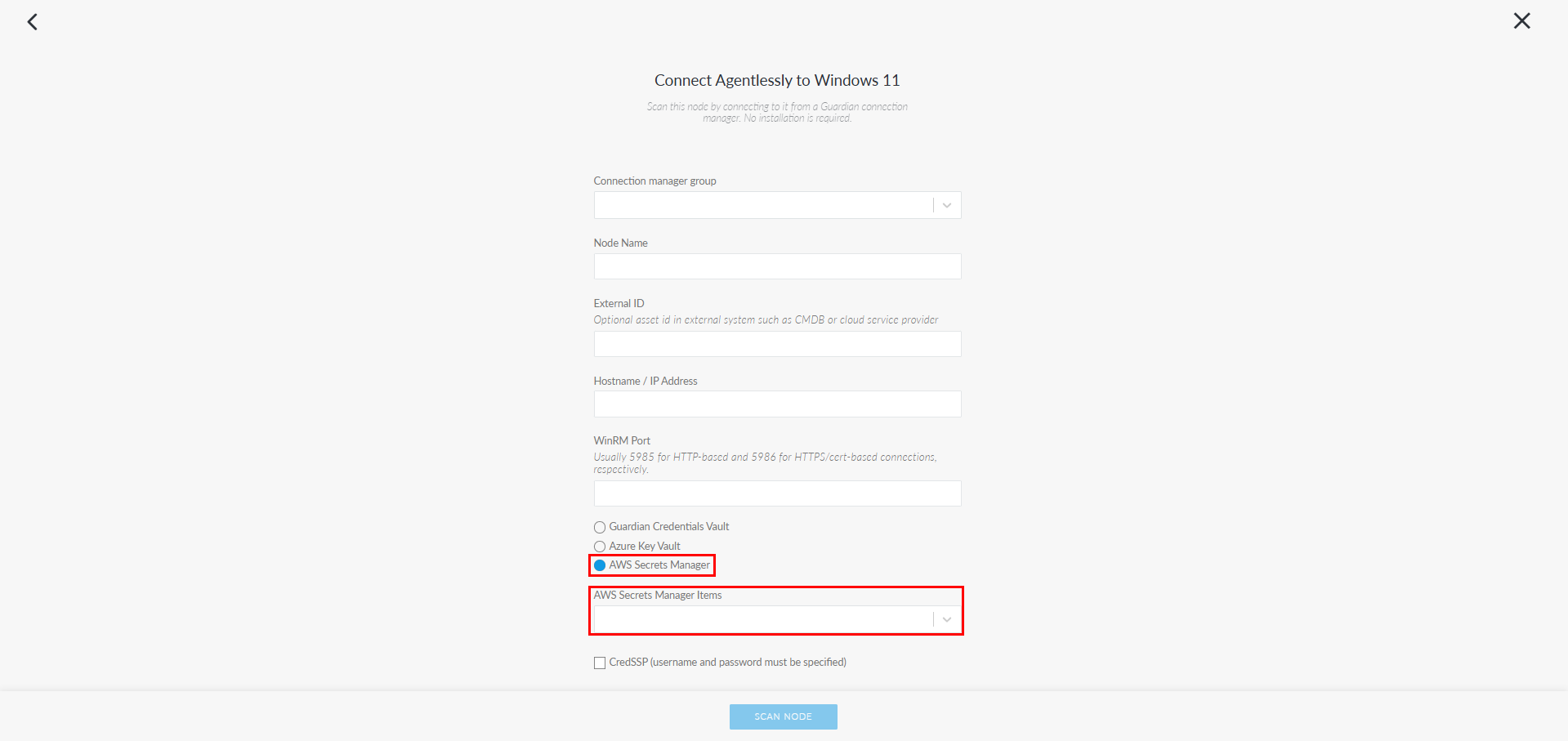
Tip: Additionally, the Guardian Credentials Vault and Azure Key Vault radio buttons are available for selection (if the Credentials and Azure Key Vault features have been enabled). For more information on the alternative credential storage options available in Guardian, see Credential Vault and Azure Key Vault Credentials.
Linux or Network Device Node
Use your organization's AWS Secrets Manager credentials to allow Guardian to authenticate access to Linux or network device nodes.
To add a Linux or network device node using AWS Secrets Manager credentials, complete the following steps:
-
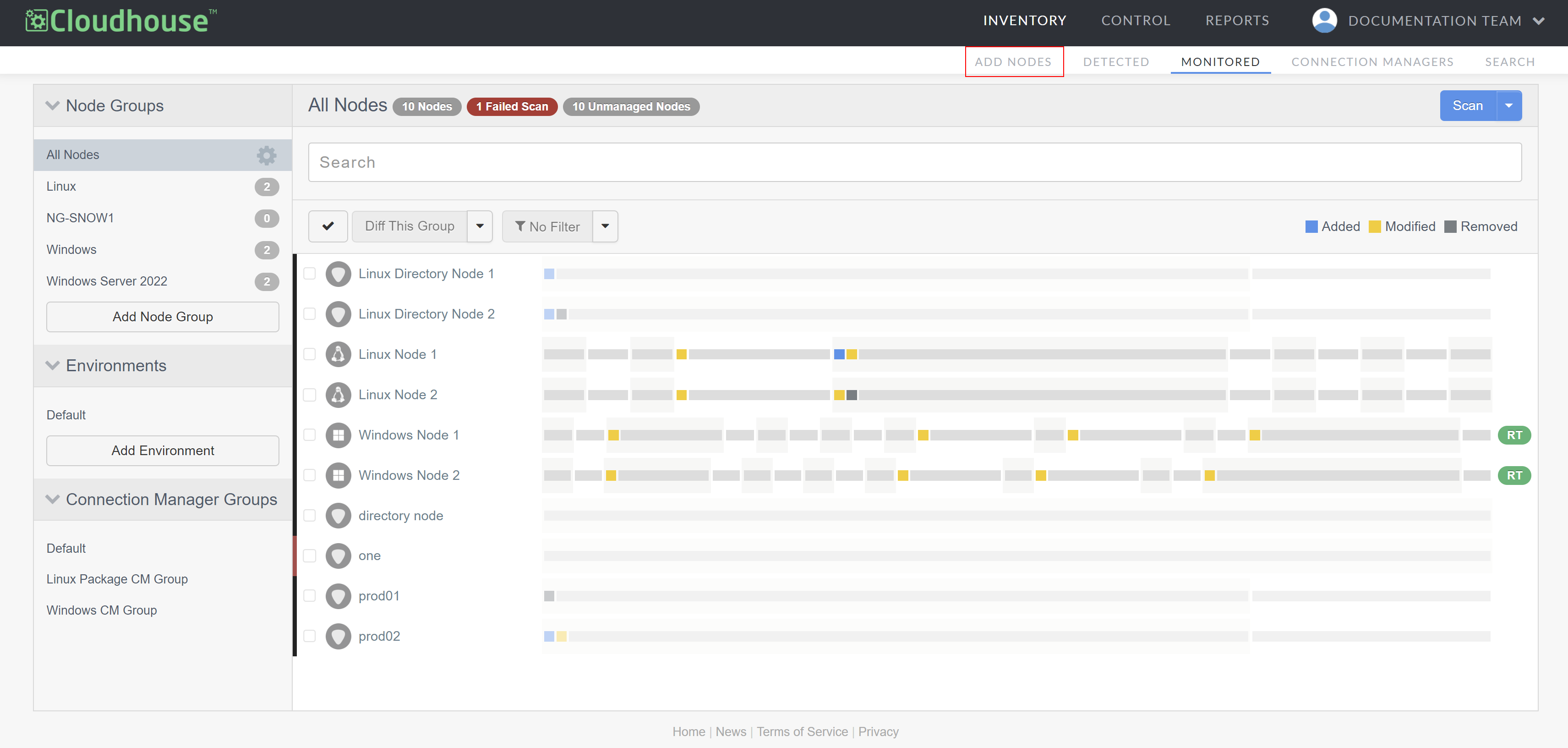
In the Guardian web application, navigate to the Add Nodes tab (
-
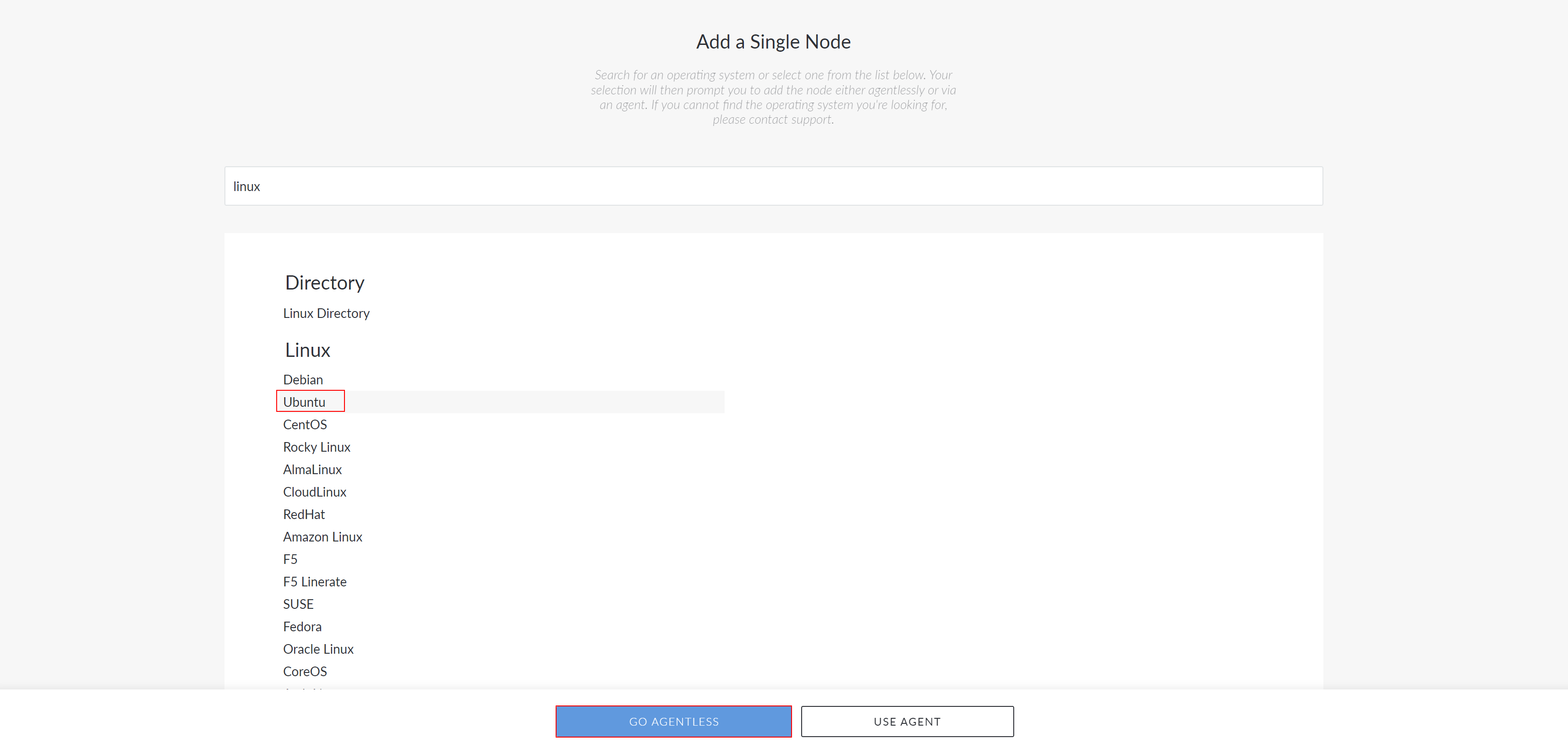
Type the node name in the search bar.
-
Select the node you want to add and click the Go Agentless button to proceed. The Connect Agentlessly to [Node Type] page is displayed.
-
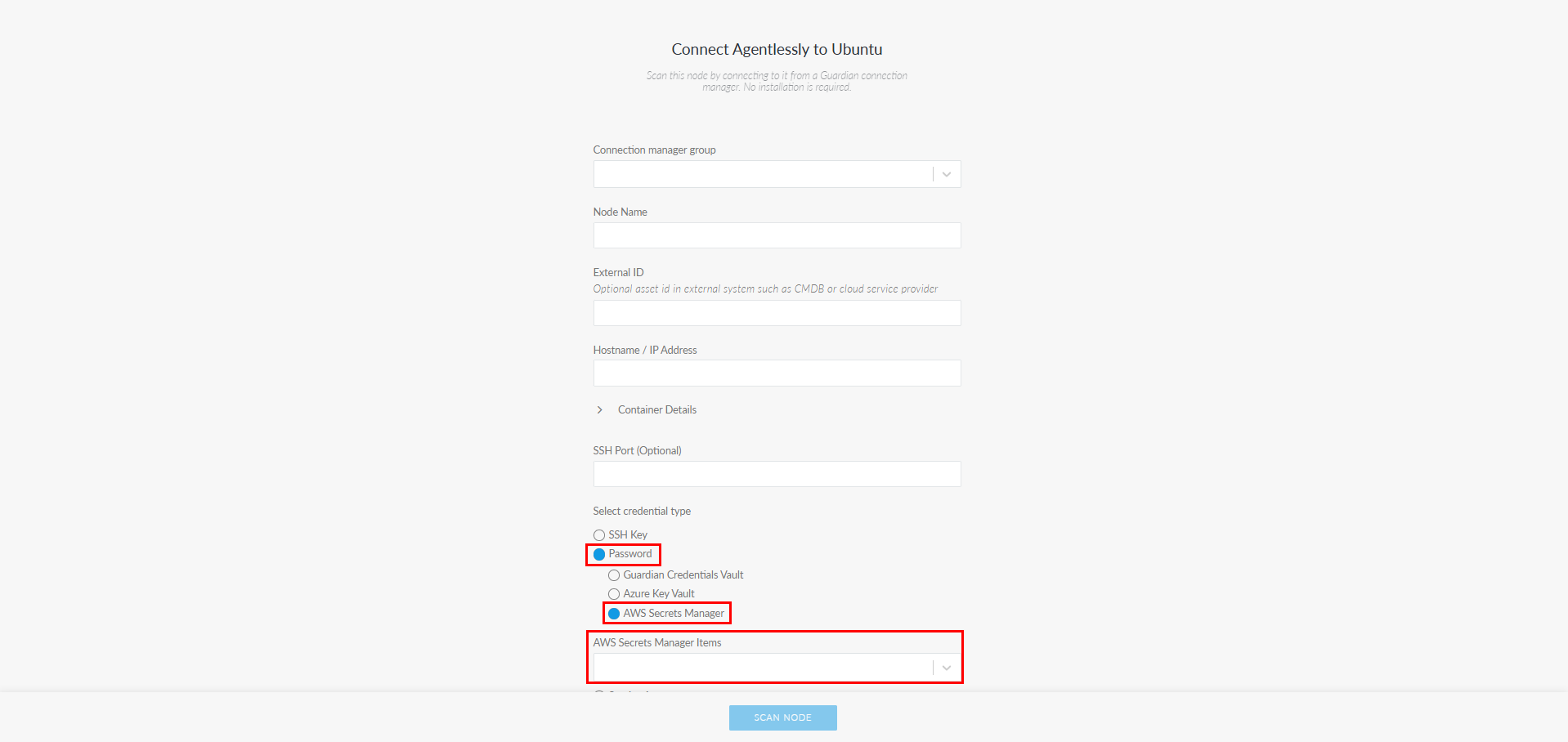
Select the Password radio button to display the AWS Secrets Manager radio button. The AWS Secrets Manager Items drop-down list is displayed.
-
Select credentials from the AWS Secrets Manager drop-down list. The secrets displayed are based on values from the credentials configured in the AWS Secrets Manager integration. For more information, see AWS Secrets Manager Integration.
-
Finally, click to Update or Scan Node.
By selecting a credential, you can securely authenticate Guardian's access to the node without manually entering credentials.
Windows Node
Use your organization's AWS Secrets Manager credentials to allow Guardian to authenticate access to Windows nodes without the need for manual credential entry.
To add a Windows node using AWS Secrets Manager credentials, complete the following steps:
-
In the Guardian web application, navigate to the Add Nodes tab. The Add Nodes page is displayed.
-
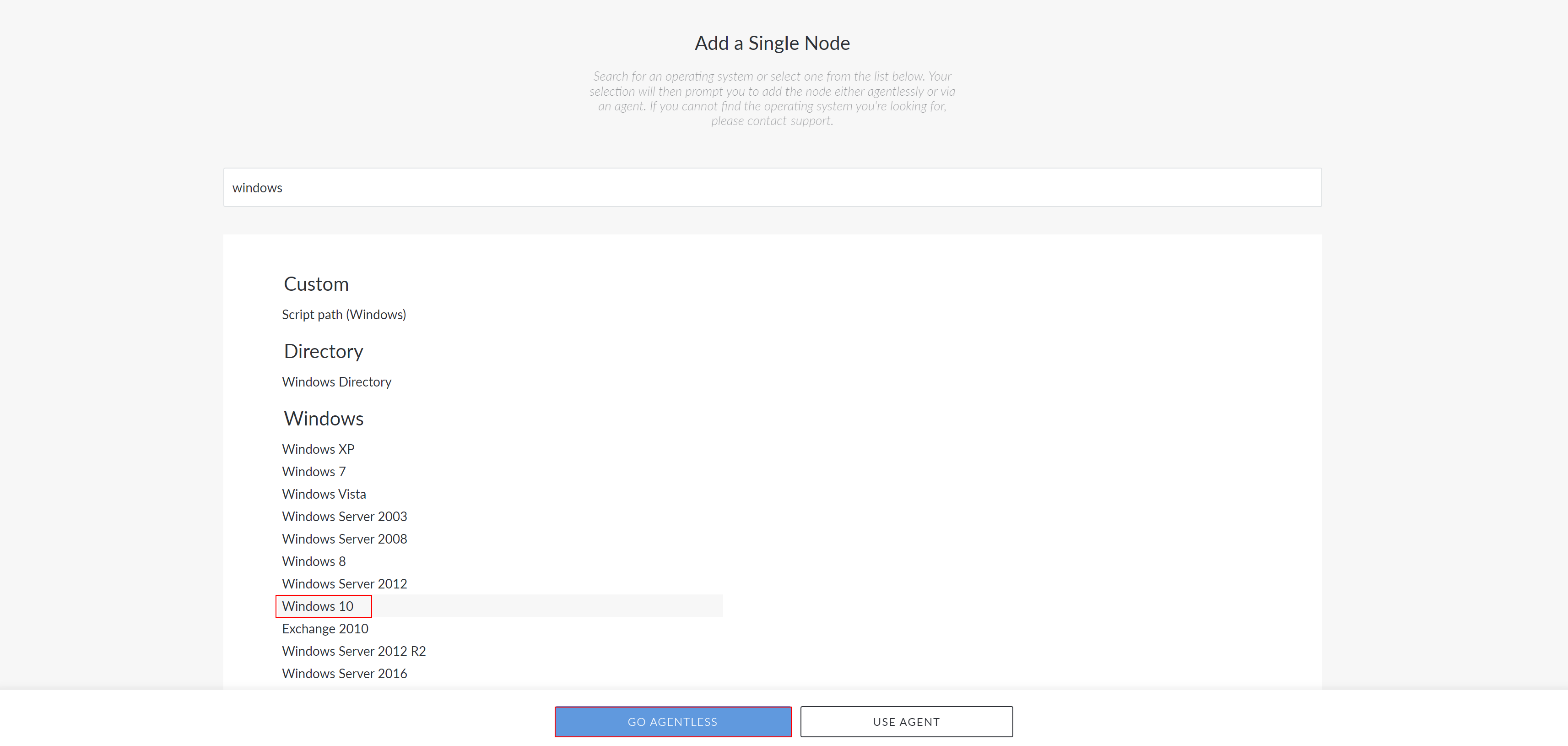
Type 'Windows' in the search bar.
-
Select the 'Windows' node type you want to add and click the Go Agentless button to proceed. The Connect Agentlessly to [Node Type] page is displayed.
-
Select AWS Secrets Manager from the list of Credentials radio buttons.
-
Select credentials from the AWS Secrets Manager drop-down list. The credentials displayed are based on values from the credentials configured in the AWS Secrets Manager integration. For more information, see AWS Secrets Manager Integration.
-
Finally, click to Update or Scan Node.
By selecting a credential, you can securely authenticate Guardian's access to the node without manually entering credentials.