Edit Policy
Policies allow you to define a desired configuration state at the node or node group level. As your inventory evolves, however, you may need to edit a custom policy to reflect your most up-to-date standards. The following topic describes how to update a policy's name, description, and target configuration. To learn how to add additional checks to a policy, see Build Custom Policy.
To edit a custom policy, complete the following steps:
-
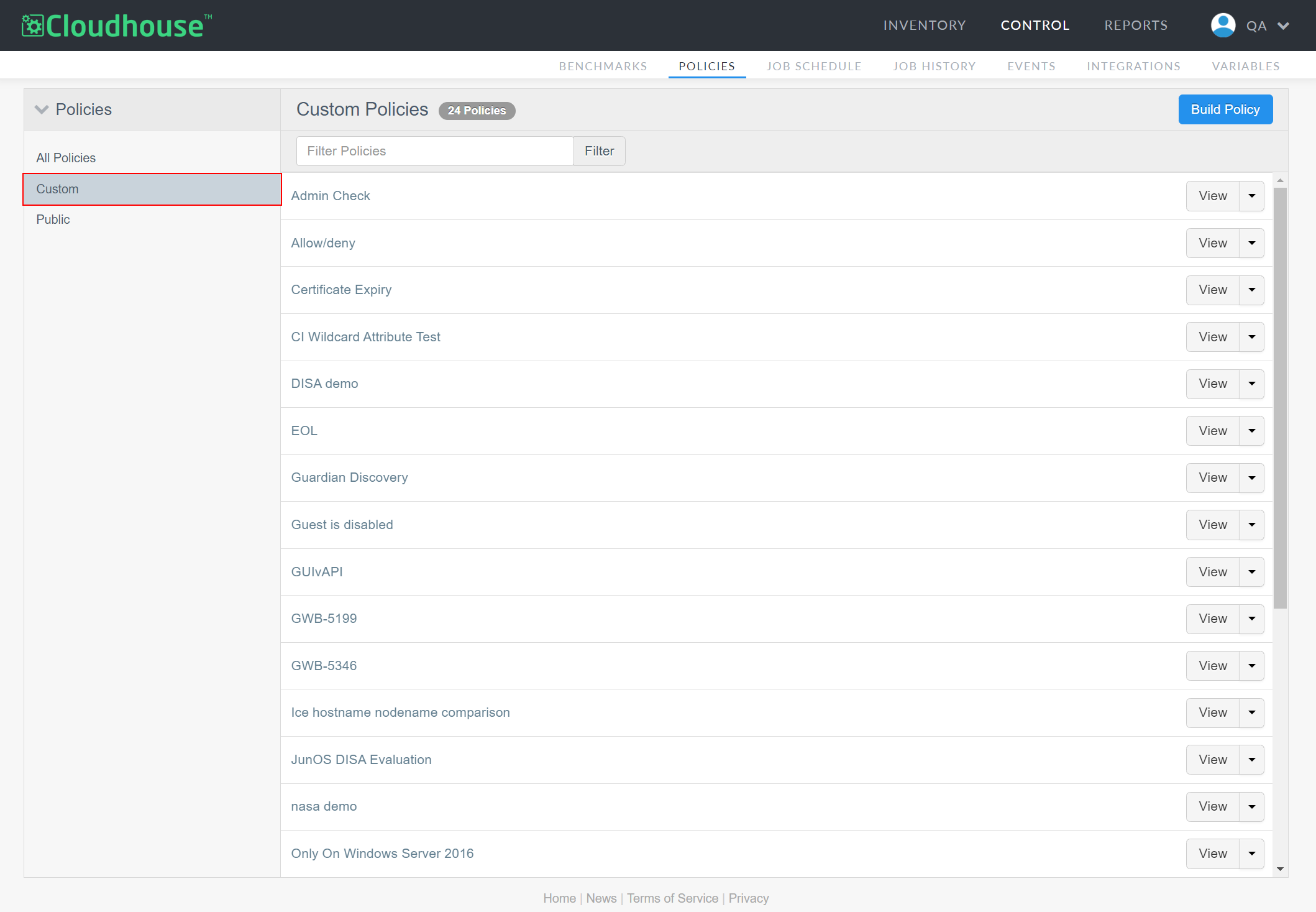
In the Guardian web application, navigate to the Policies tab (Control > Policies).
Note: By default, the Custom tab is displayed when you click the Policies tab. This process assumes that the Custom tab has been selected, as you cannot edit public policies.
-
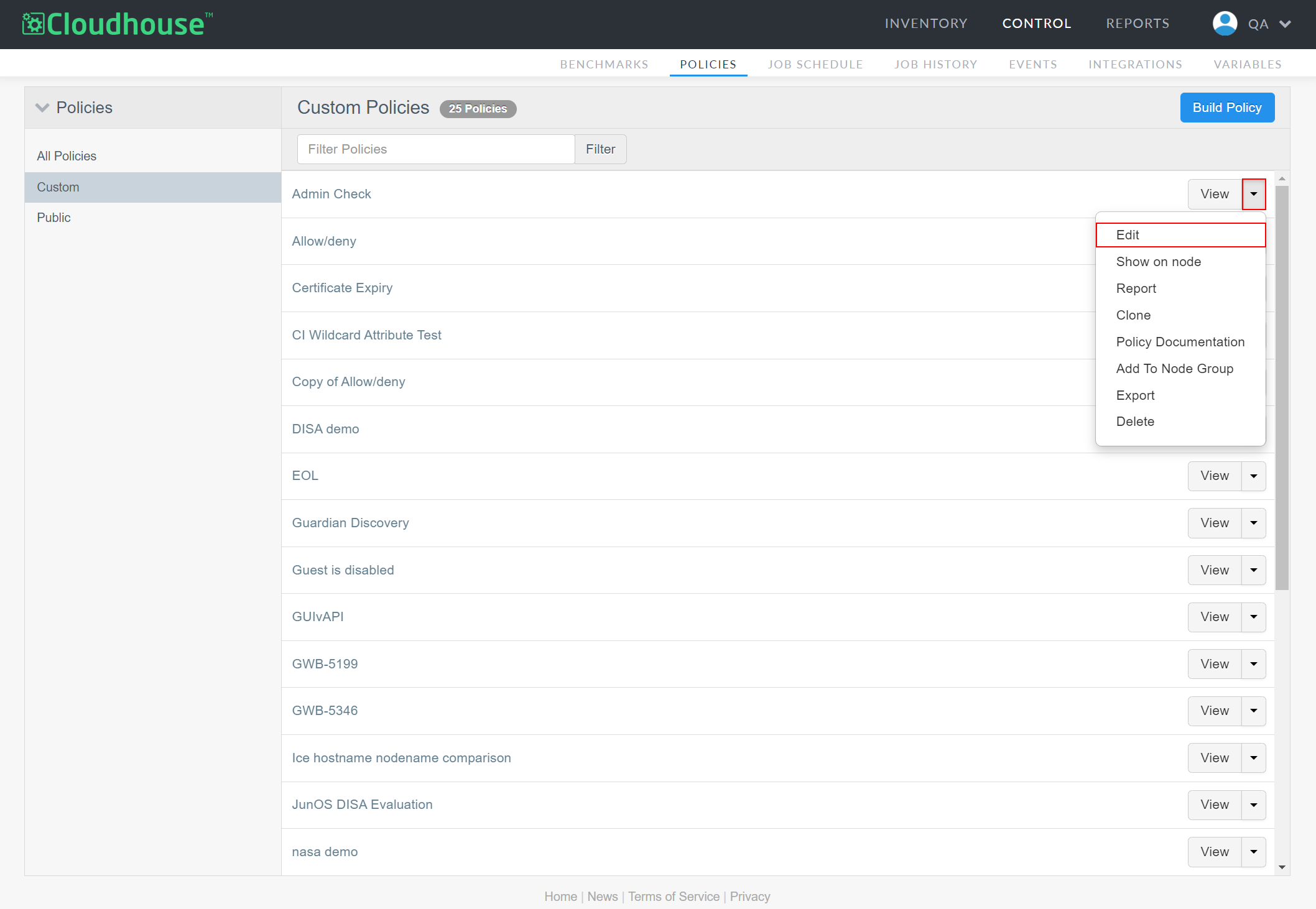
Click the View drop-down list, then select Edit. The Edit Policy page is displayed.
-
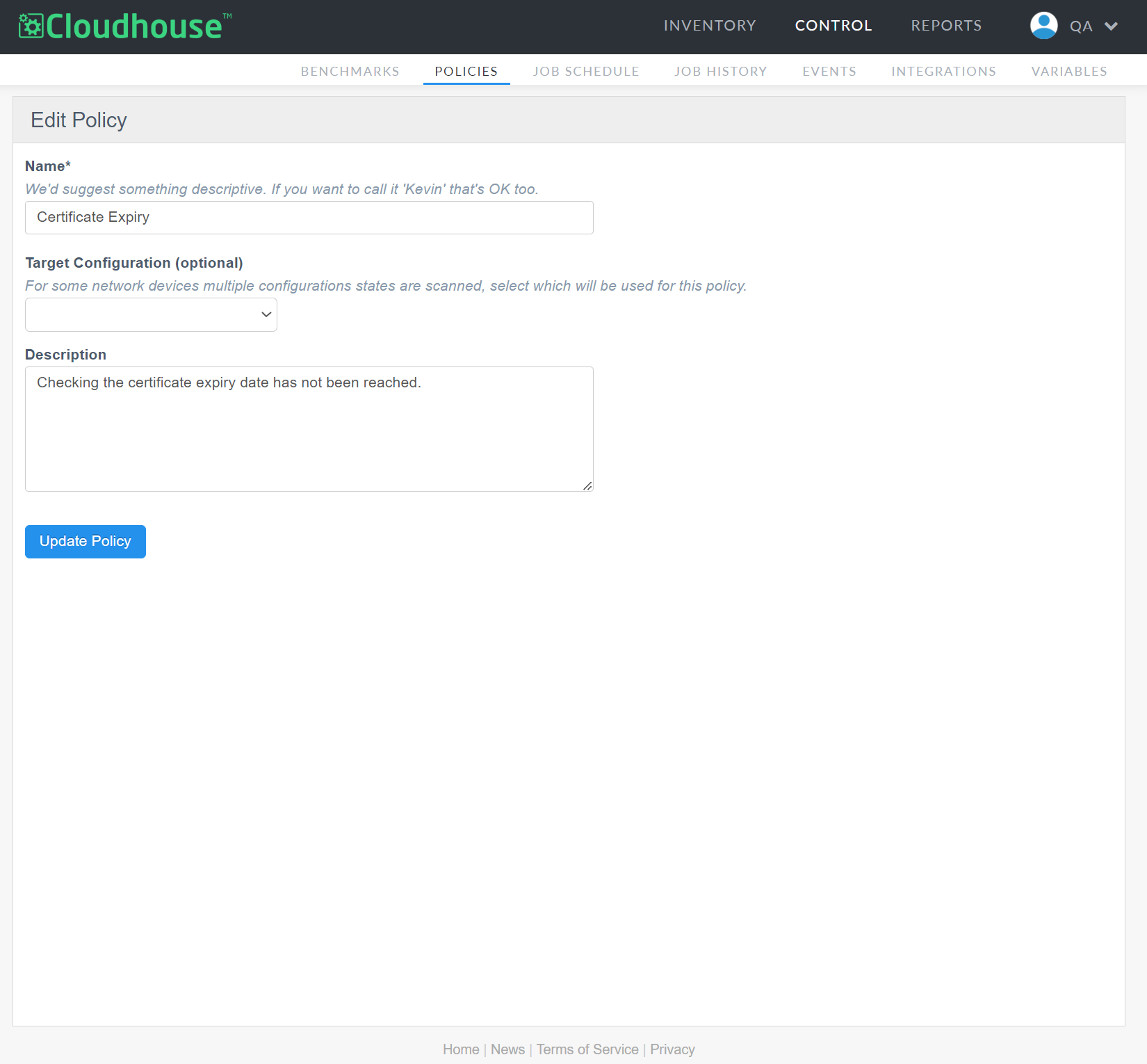
Here, the following options are displayed. Edit as required:
| Option | Description |
|---|---|
|
Name field |
The display name for the policy within Guardian. This name is how you will identify the policy among all others configured in your Guardian instance, so ensure it is descriptive. |
|
Target Configuration (Optional) drop-down list |
The target configuration state to be scanned for this policy. Note: This option is only applicable for certain network devices where multiple configuration states are scanned. The following options are available to select:
Note: This option is only applicable for devices that retrieve configuration data from multiple sources. |
|
Description field |
A description of the policy checks being run. |
- Once complete, click to Update Policy. The policy is then updated and displayed.